Appearance
GST
Calculating GST
GST34 (Must be Run Before Tax Estimation)
For the non-taxable portion of GST to be posted you must runt the GST 34 before running any tax calculations.
After you save the GST 34 your bottom line should agree with your trial balance. If not there's a couple reasons:
- There is other adjustments to the account (e.g. unpaid balances or refunds not yet received)
- You have GST on entries that shouldn't have GST. You will need to go back and fix these entries.
GST Instalments
In the Description "Instal-M-YYYY" without the quotes. Where 'M' is the month of the end of the reporting period and 'YYYY' is the year of the end of the reporting period.
Data Entry for a Client that Complete Their Own 3 Quarters of GST:
While doing data entry, post the payments made or the refunds received for these quarters to the 2190 account and in the 'Tax' enter the full amount as well. Remember: Credit amounts are negative.
Non-Taxable Adjustments Made to Bookkeeping:
Any NT adjustments, such as meals & entertainment, will be posted to bookkeeping page 0. Which means that it will not be accessible from bookkeeping the only way subsequent adjustments will be made will either be through re-saving the posted GST return or through Andrew, who will modify the DB.
Clients that do their own First 3 Quarter's Returns
- Click new to start a new return - you will need to change/update the date to reflect the quarter that you're preparing.
- Add the 3 previous quarters by 'Add Prior Qtrs' drop down button
- Make sure the dates are correct and enter the appropriate data
- Go back to the master and click calc.
- And everything should be good!
Posting Quarterly Returns
If your 'Settings' (see top left hand corner of the GST window) are set to quarterly than you'll advance a quarter. Then do everything that you would normally for an annual filer.
Filtering GST GL
When you open the GST Ledger (by double clicking the 2190.001 account from the inline TB) you can filter to show only the entries that were specifically posted to the account by entering "A|" (without the quotes) in the Search Description field and clicking Update button.
You can further filter the results by selecting the rows that you don't want and hitting the Delete key. To reinstate the records that you have just filtered out, click the Update button.
If you want to reinstate all the records (back to the original loading of the ledger), clear the Search Description field and click update.
Configuration
Background
Clients may have different reporting requirements, for example some report on a quarterly basis, others may have a reporting period that differs from their fiscal year end (FYE), while others could have a combination of the two.
One of the unique features within GC is the ability to include missed GST and/or missed ITCs from a prior reporting period. It is important to note that this is only limited to the fiscal reporting period so it's only usefull to monthly and quarterly filers. If there are missed GST and/or ITC in a previous fiscal reporting period these will need to be manually accounted for on the current year return.
By default, if a configuration record doesn't exist in GC a record is automatcially created based on the information from Tax and Business Information of the entity. The registration date is the same as the business start date, the effective date is set to the same and the reporting frequency is set to annual. This record is created when the GST34 window is loaded and no configuration record is detected.
Changing the Configuration Record
To update the configuration record:
- Open the File Sales Tax window.
- Click on Settings.
- Click on Configuration:
- Update the settings you require changed.
- Click save.
When to Add or Delete a Configuration Record
Adding a Configuration Record
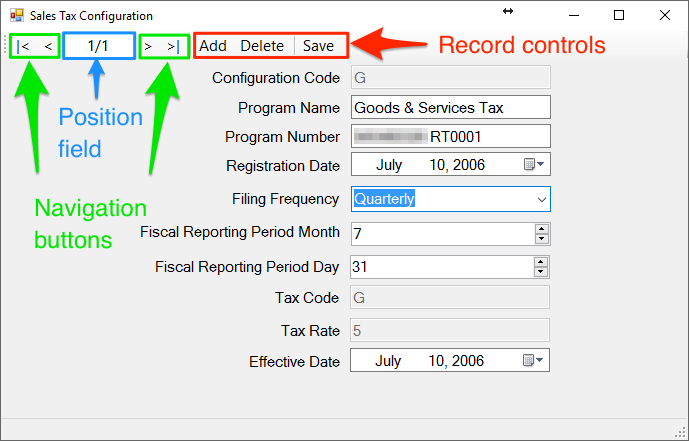
The primary reason you would want to add a configuration record is when there has been a change to the fiscal reporting period. For example, a client has an off calendar FYE but had their fiscal reporting period for GST on a calendar period. What you will want to do in this case is to:
Before adding the new configuration record: Calculate and save the final return for the period up to day before the change of fiscal reporting period. Open the Configuration Window. Click the Add button. You will notice the information hasn't changed but in the position field you will see the word New. Update the Fiscal Reporting Period Month, Fiscal Reporting Period Day and the Effective Date. Click Save. Close the configuration window (returning to the GST34) window and create a new return (ensure the reporting period agrees with the new reporting period).
Deleting a Configuration Record
The primary reason you will want to do this is to remove one that you accidentally created. To remove a record:
Using the navigation buttons, navigate to the record you wish to remove. Click Delete. That's it.
The images below will help you find what is discussed above. 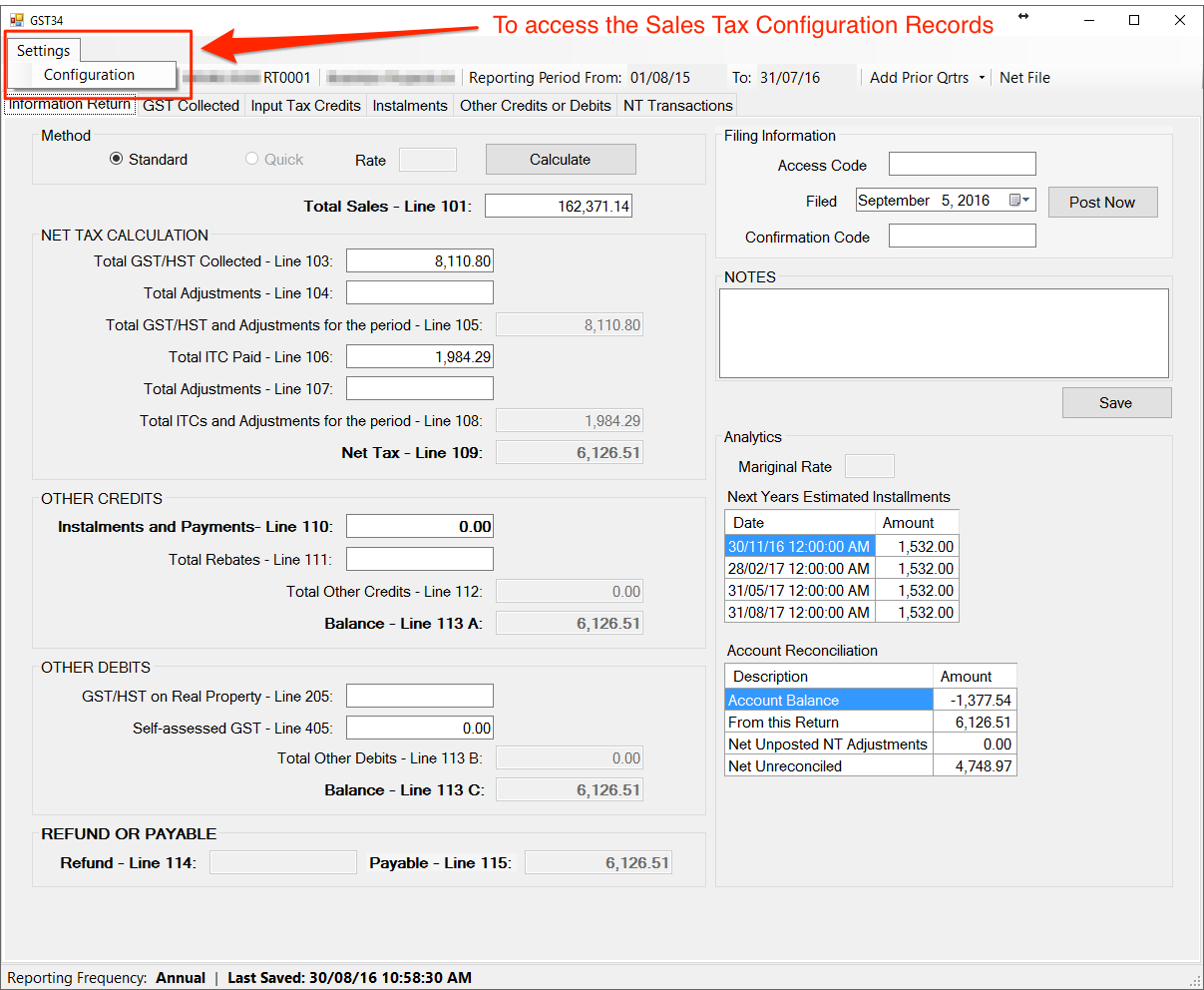
Sales Tax Configuration Window