
Appearance
Fixed Assets / Property, Plant & Equipment
Adding & Disposing
When you are adding an asset you will be prompted to confirm that this entry is an addition. If it is an addition check the box and click save. If it is not an addition and you're just making an adjustment to the account do not check the box and click save. If you have entered the wrong account and you intention is to neither enter an addition or adjustment to that account then click cancel and change the account number for that entry.
If you make a credit entry to a fixed asset account you will be prompted again. This time GC wants to know if the entry is a disposal or a rebate. If you are just making an adjustment to the account just click save. However, if you have entered the wrong account by mistake, click cancel and change the account number for the entry. If you are disposing an asset ensure that you're entering the proceeds and not something adjusted. GC will adjust this as part of its PPE Calcs function.
For any of the above, if you do not indicate that something is a acquisition, disposal or rebate, the entry will not be included in the CCA/CEC calcs.
Calculating Gain or Loss on Disposal of Assets
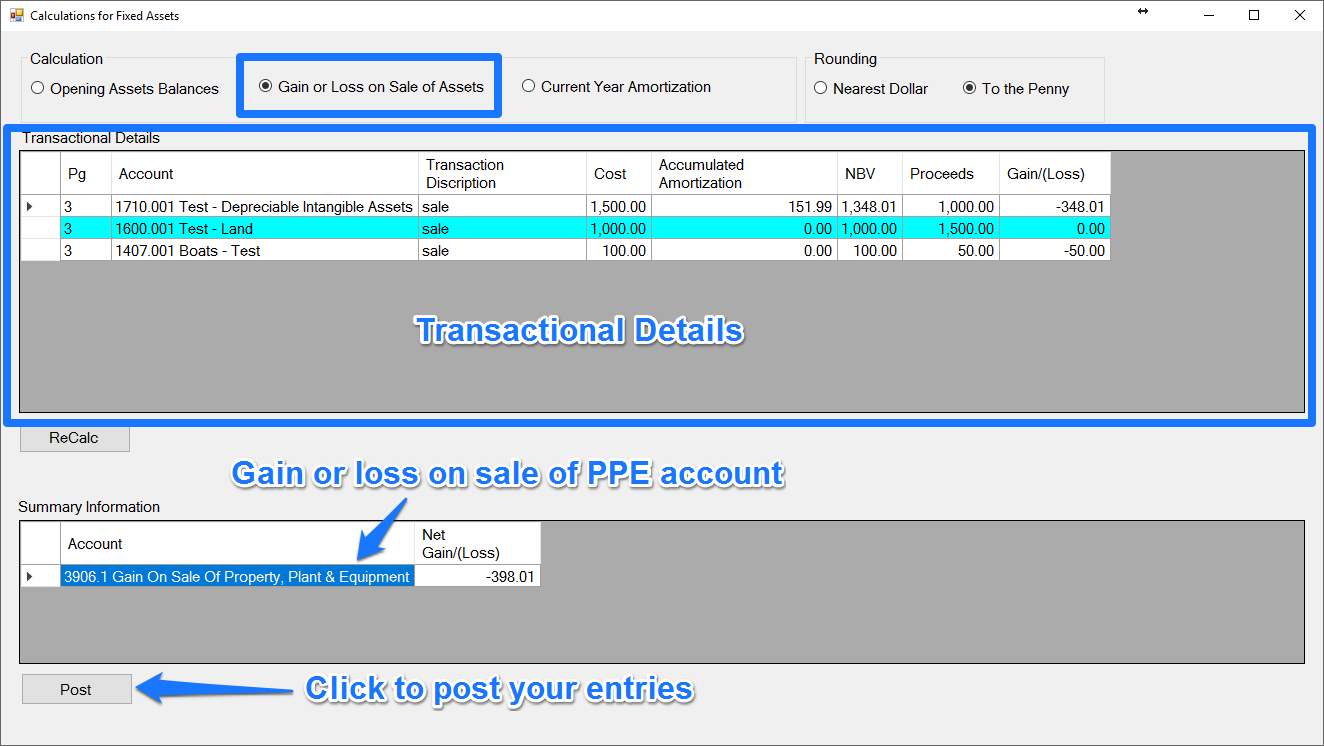
Before calculating any amortization you will need to calculate any net gain or loss. GC has the ability to help you out with all those tedious calculations. Just keep in mind that this is functionality is limited to 1400 and 1710 series accounts. However, if there is a disposition of land (via a 1600 serries account) it will appear and be highlight in the PPE window but it's gain or loss won't be included in the net gain or loss calculation nor will any entries be automatically posted for this. It is there just to prompt the user that there is a disposal of land. It is expected that the data collector as already dealt with the gain/loss since it is required in getting a correct tax estimate.
To use GC to calculate the book gain or loss on the disposal of assets:
- Click the PPE Calcs button.

- Ensure that there is a 3906 account setup. If the account is missing, see below for instructions on setting it up.
- By default the PPE Calcs window is set to calculate the gain or loss on assets.
- Cross reference the list with the CCA schedule to ensure everything being disposed is properly captured.
- If you're satisfied with everything, click the post button. This will post all the necessary adjustments to the bookkeeping page it was launched from and you will be notified once all the entries have been posted.
- You can either close the PPE Calcs window or proceed to calculating the current year's amortization.
14.1 Assets
Since there is already a Class 14, a couple additional steps are required when adding a class 14.1 asset.
In the asset detail ensure that class 14.1 is selected. Ensure that the book class that is selected is 'N/A' And that's all that you need to do.
Calculating Amortization
Calculating Amortization on Intangible Assets
GC has no automation to calculate amortization on intangible assets so this needs to be done manually.
There are two approaches to calculating this:
- If there hasn't been any additions or disposals in the current year then you can take last year's amortization expense and multiple it by 0.93. You can easily get last year's amount by opening the account settings window for the 5895 account and clicking the View All Transactions button. image.
- Add all the intangible asset costs, multiply them by 0.75, subtract that by all the accumulated amortization balances and multiply that by 0.07. Note if your result is negative, there is either an issue with your calculation or a problem with your intangible asset balances. DO NOT POST ANY AMORTIZATION FROM INTANGIBLE ASSETS UNTIL THIS IS RESOLVED.
If you are calculating the amortization for the first time after an intangible asset has been acquired, your calculation will be cost less GST multiplied by 0.75, multiplied by 0.07.
Note If this is the first year for a corporation then this amount needs to be further prorated by the number of days in the fiscal year over 365 (or 366 in the case of a leap year).
Calculating Amortization on Tangible Assets
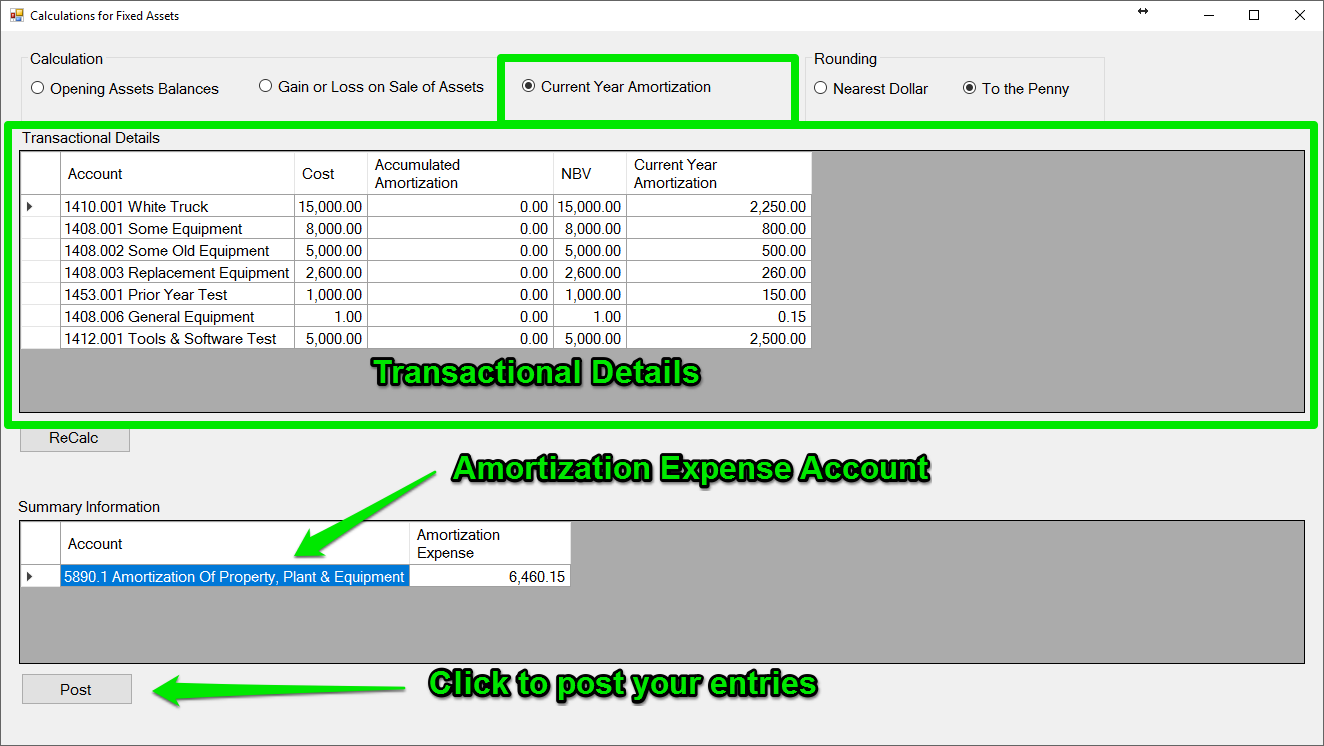
GC has an automated feature to post the amortization for each tangible asset asset account (1400 series accounts). To post the amortization expense:
- Open PPE Calcs.
- Select Current Year Amortization.
- Confirm that you have an amortization account setup. If the account is missing, see below for instructions on setting it up.
- Review the transaction details, ensuring there isn't any negative numbers. If there are any negative numbers this could be related to an asset being disposed where the asset account and its corresponding accumulated amortization account hasn't been completely cleared. You will need to correct this before continuing.
- Once you're convinced everything is in good order, click Post. All the entries will be posted to the bookkeeping page you launched the PPE calcs from. You will be notified after these entries have been posted.
- Close PPE Calcs - you're done.
Adding Accounts for Gain/(Loss) on Disposal of Assets [3906] and Amortization of Property, Plant & Equipment [5895]
The easiest way to add these accounts is to open the account settings for a fixed asset (any will do - current or disposed). Click the Asset Details tab and click the plus buttons corresponding to Amortization Expense and Gain on Sale. That it, there is no need to save, just close account settings. 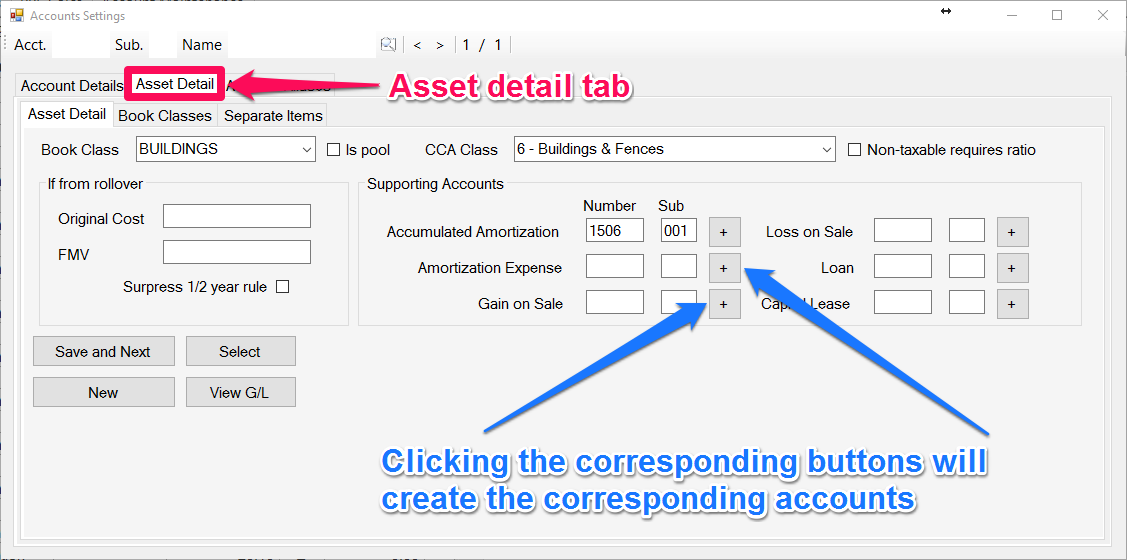
Adding a Class 13
Adding a class 13 asset requires a couple additional step on account of the requirements for straight-line depreciation.
Add the class 13 to bookkeeping as you would any other asset (using 1413 as the master account and Ctrl+N to select the next open sub account for that class).
Go to the Book Classes tab and add the new book class - indicate that it's straight-line and enter the start and the end of the lease. 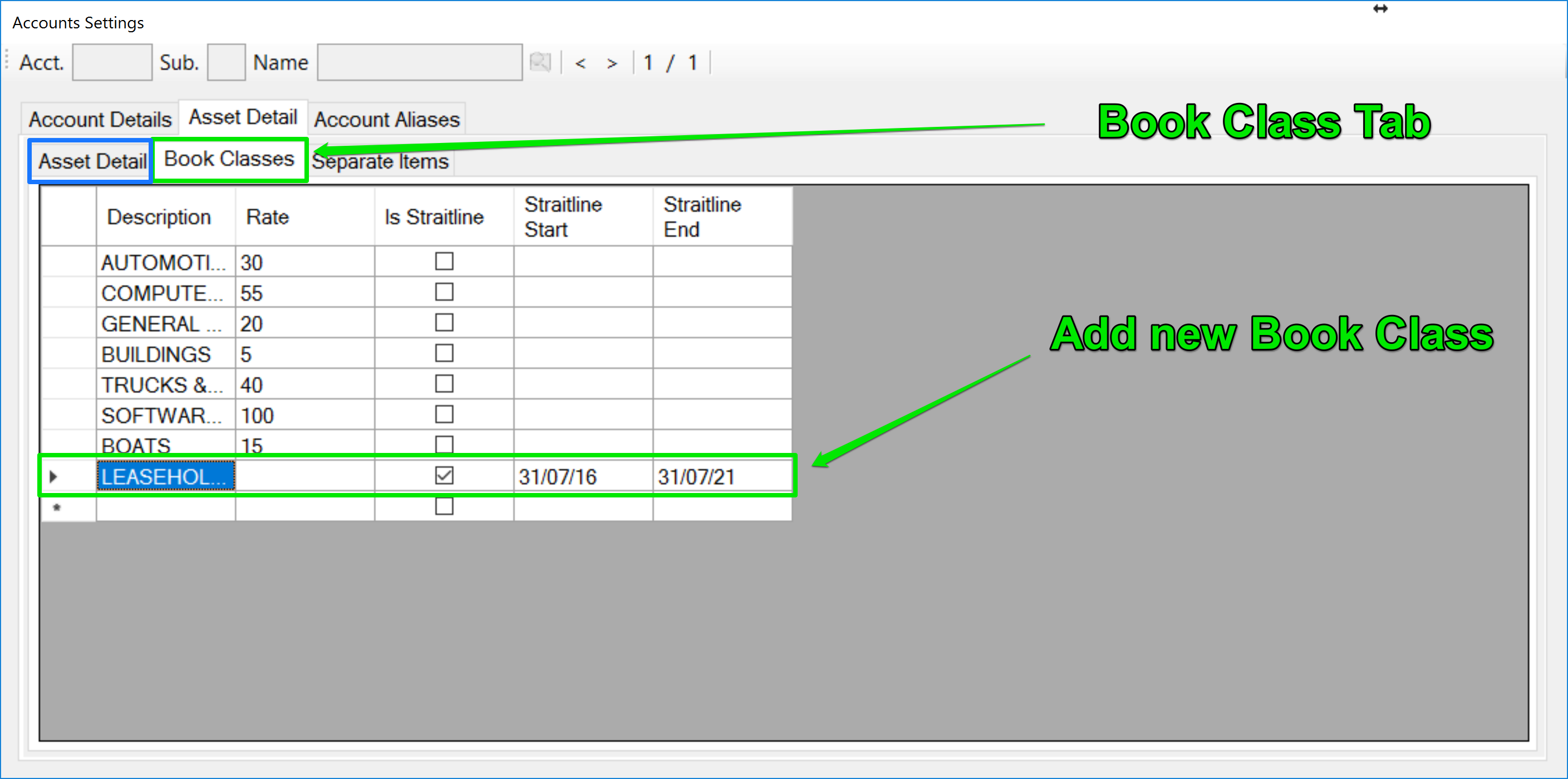
Go back to the sub-Asset Detail tab and select the newly created book class.
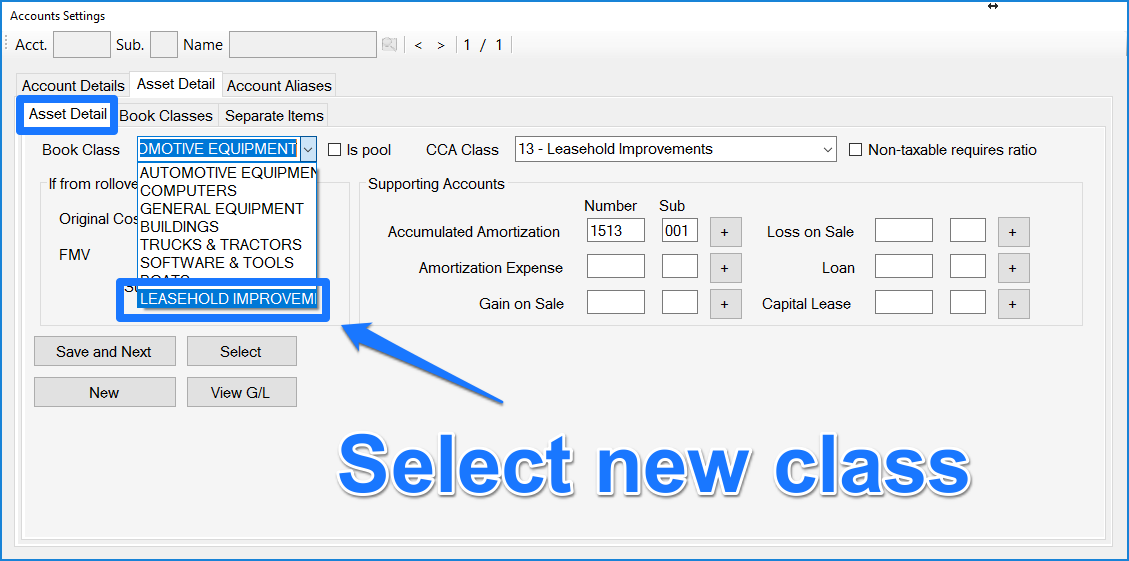
Then save the account setting update.