Appearance
Accounts
Changing Account Name Case
To disable the Proper Case default, double click the 'Name' label. It will change from "Name" to "nAmE", then whatever you type as the name will appear as you type it.
Old Upper Case Account Names
If you're in an old file that still has accounts with all upper case account names, you can change these to proper case by going to db Maintenance then click Update Account Names to Proper Case. This will change all the account names to proper case. BE WARNED, if you have adjusted any accounts as detailed above, these too will be changed. So you're best bet is to do this before making any changes to account names otherwise you can just go back to these accounts and update them.
Viewing the Transactions for an Account
Transactions for a Particular Reporting Period
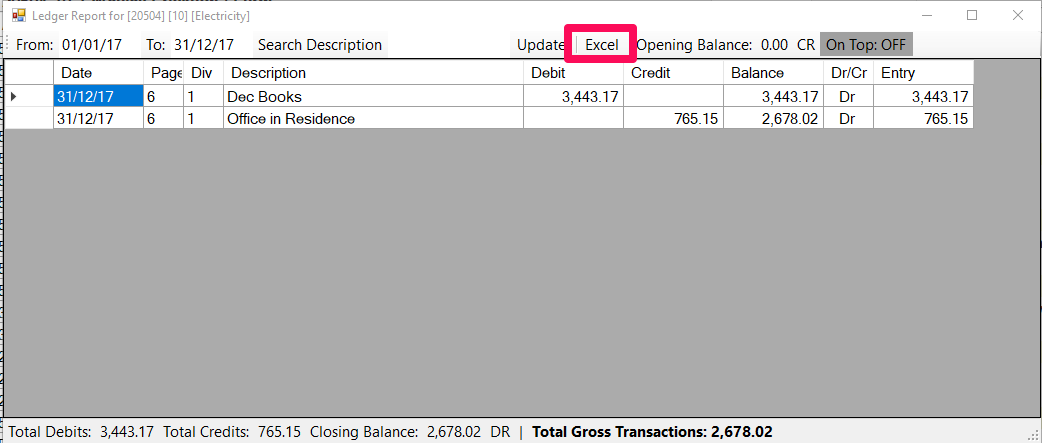
To view the transactions of a particular account for a specific reporting period, navigate the bookeeping to the desired reporting period then from the inline reports, double click the account you wish to view the transactions of.
From the pop-up you will be able to export the transactions to Excel by clicking the Excel button
All Transactions for an Account
This feature is suitable more for asset or long-term liability accounts when you want to see a history of transactions for a particular account but it is open to all non-system accounts.
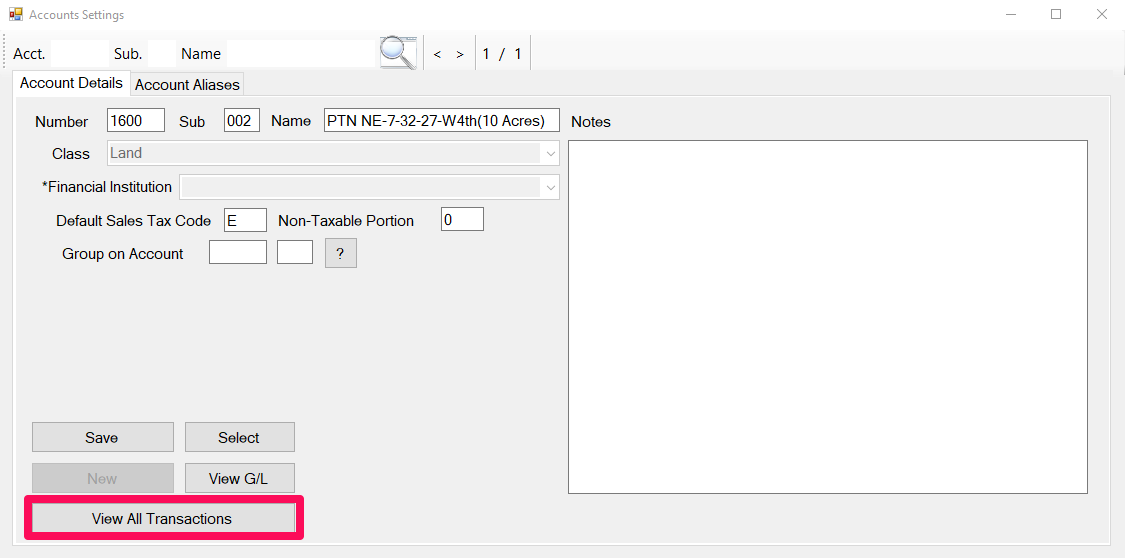
Open the account settings for the account that you wish to view the transaction history for and click the View All Transactions button.